Email channel · 2–4 min
Connect Email (Gmail)
Connect a Google mailbox so your team can manage customer email together in Flex54.
Before you start
Have these ready
- Google account credentials for the mailbox you want to connect.
- Permission to approve access. Workspace admins may restrict third-party apps.
Step-by-step
Follow these steps
- 01
Open Email in Channels
Find Connect your email and click Connect.
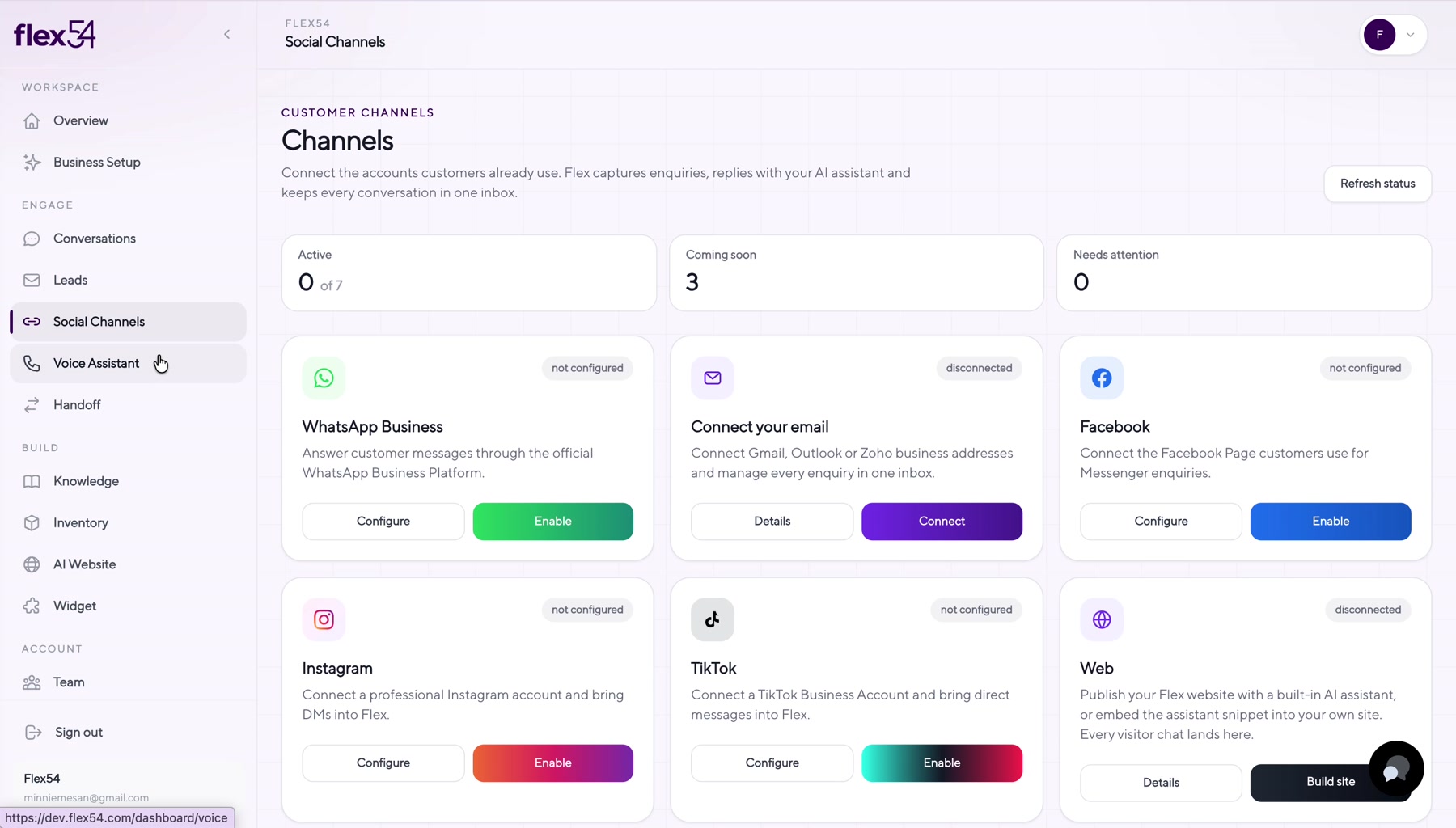
Example screen. Account names may differ in your workspace. - 02
Choose the Google account
Select the mailbox your team will use.
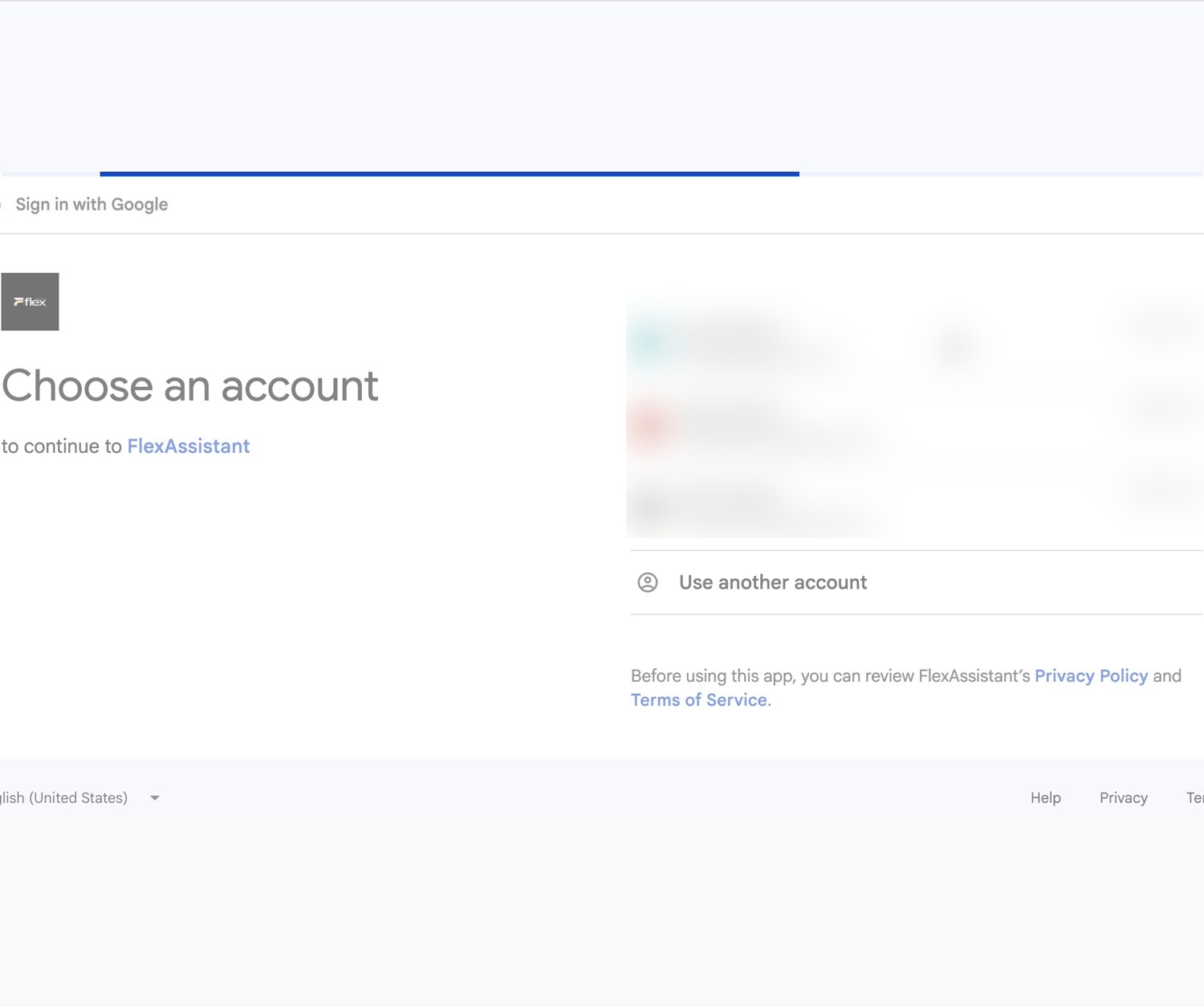
Example screen. Account names may differ in your workspace. - 03
Review and approve access
Read the permissions on the Google consent screen and click Continue.
Important: If Google displays an unverified app warning, stop and contact support before continuing.
- 04
Confirm the email connection
Google returns you to Flex54. Send a test email and confirm it appears in Conversations.
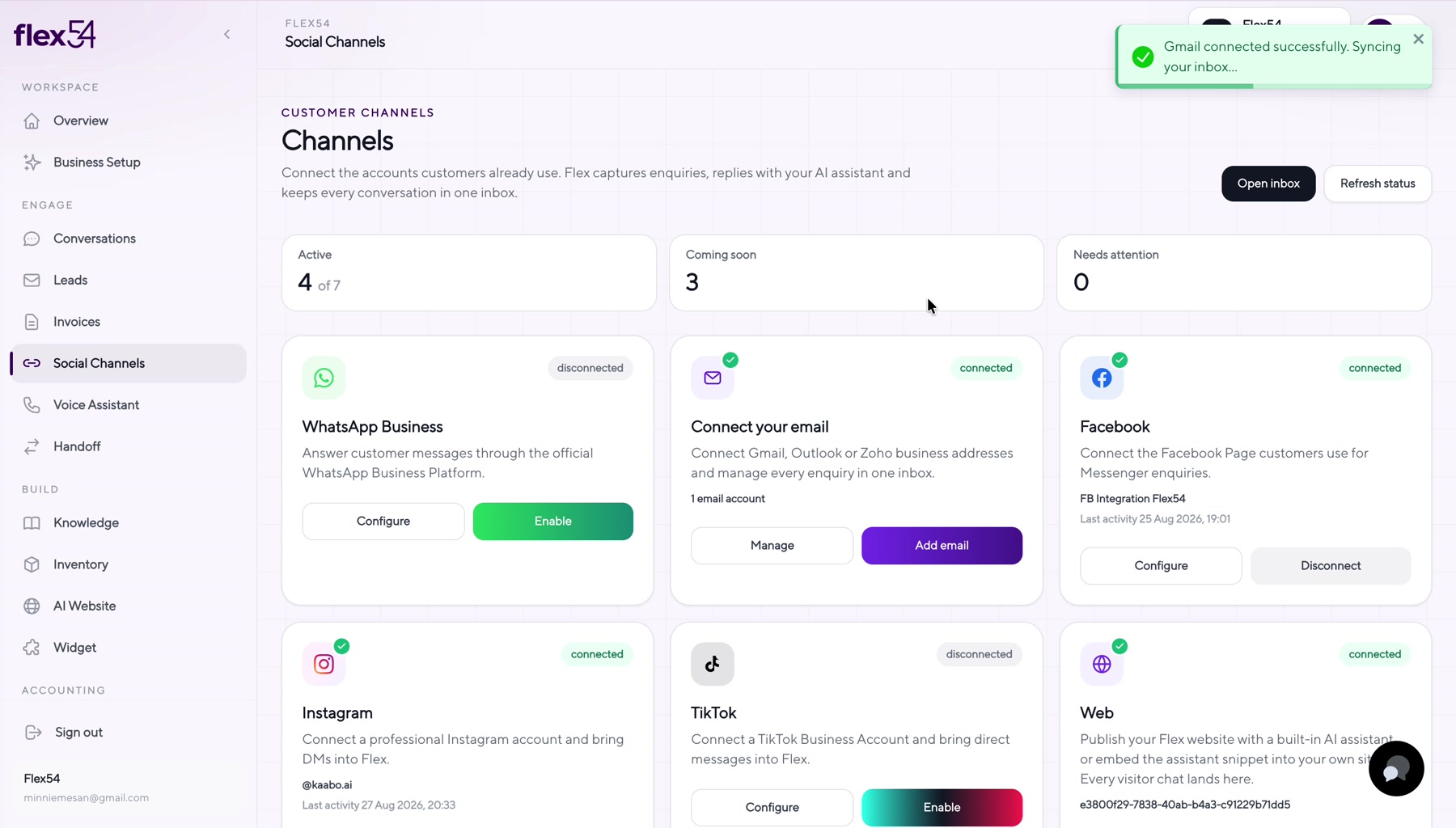
Example screen. Account names may differ in your workspace.
Connection complete
Confirm everything works
- Email shows Connected in Channels.
- A test inbound email appears in Conversations.
- A reply sent from Flex54 reaches the sender.
Troubleshooting
If something doesn't work
Google says the app is not verified
Do not continue through the warning. Contact support to confirm the approved integration.
Workspace blocks access
Ask your Google Workspace administrator to approve the Flex54 email integration.