Messaging channel · 5–10 min
Connect WhatsApp Business
Connect a WhatsApp Business number so your team can receive and reply to customer messages in Flex54.
Before you start
Have these ready
- A Meta profile with full control of the Business Portfolio and WhatsApp Business Account.
- A phone number that can receive SMS or voice verification if Meta asks.
- Pop-ups and third-party cookies enabled for this setup session.
Step-by-step
Follow these steps
- 01
Open Channels in Flex54
Sign in, select Channels in the left menu, then find the WhatsApp Business card.
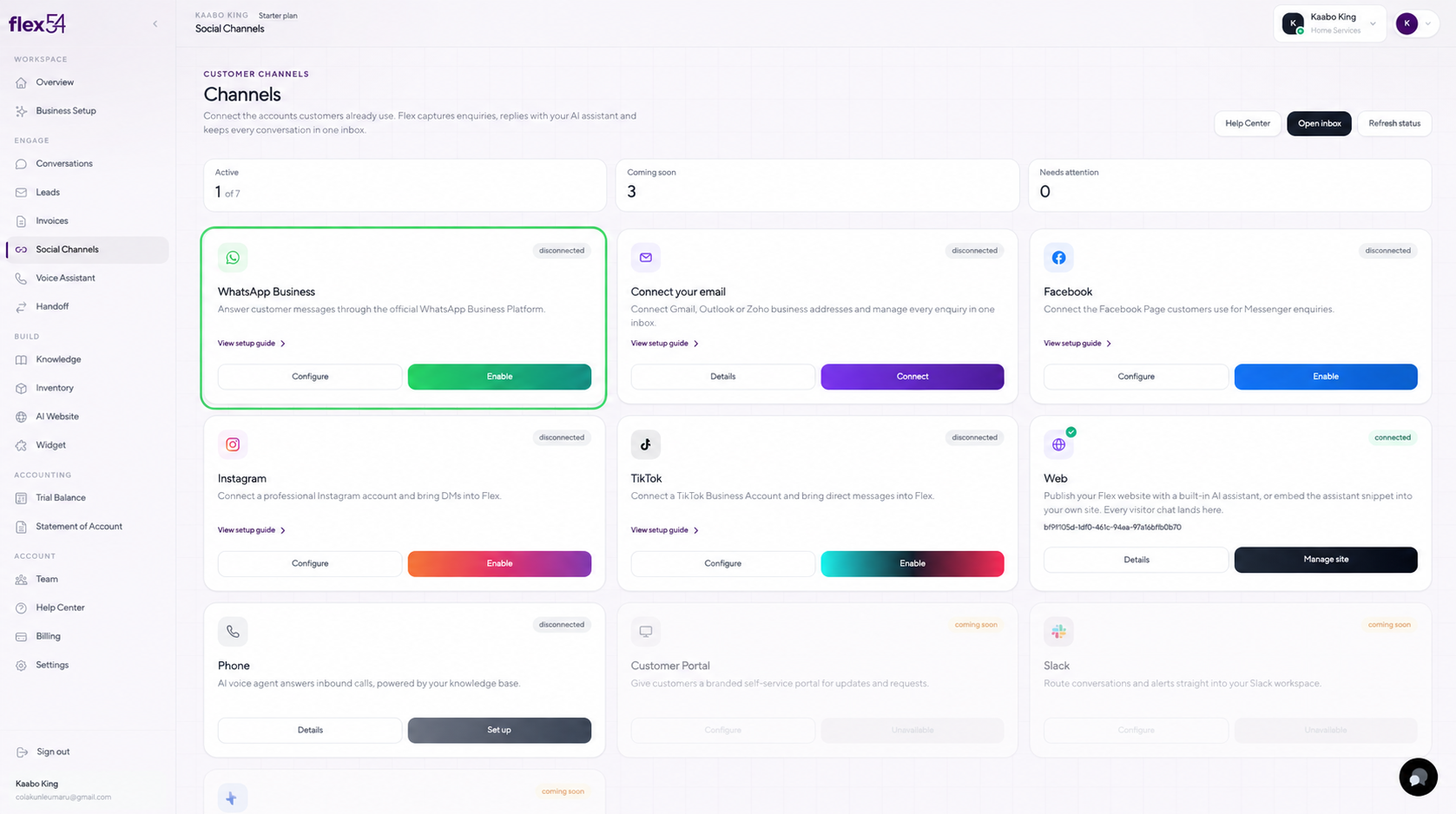
Example screen. Account names may differ in your workspace. - 02
Choose how to connect your number
Select Existing business app number to keep using the mobile app, or New or dedicated number for the WhatsApp Business Platform.
Important: If you need to keep the number active in the mobile app, choose Existing business app number.
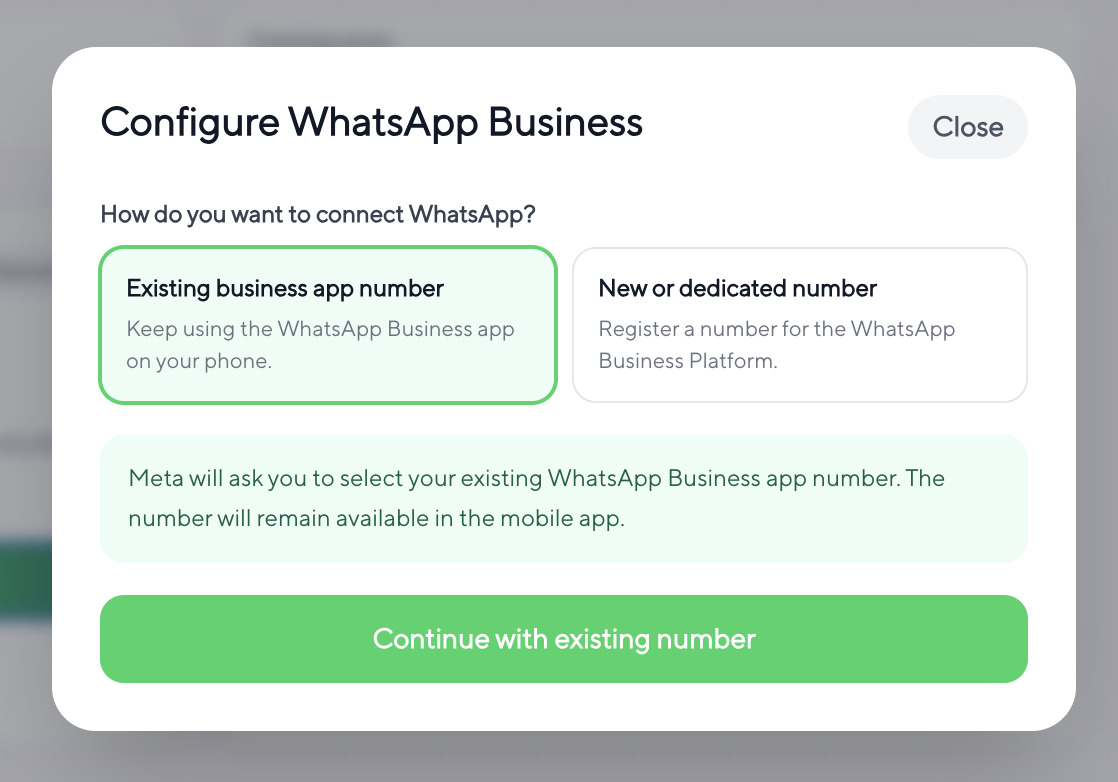
Example screen. Account names may differ in your workspace. - 03
Select your Meta business
Meta opens in a new window. Choose the Business Portfolio that owns the WhatsApp assets you want to connect.
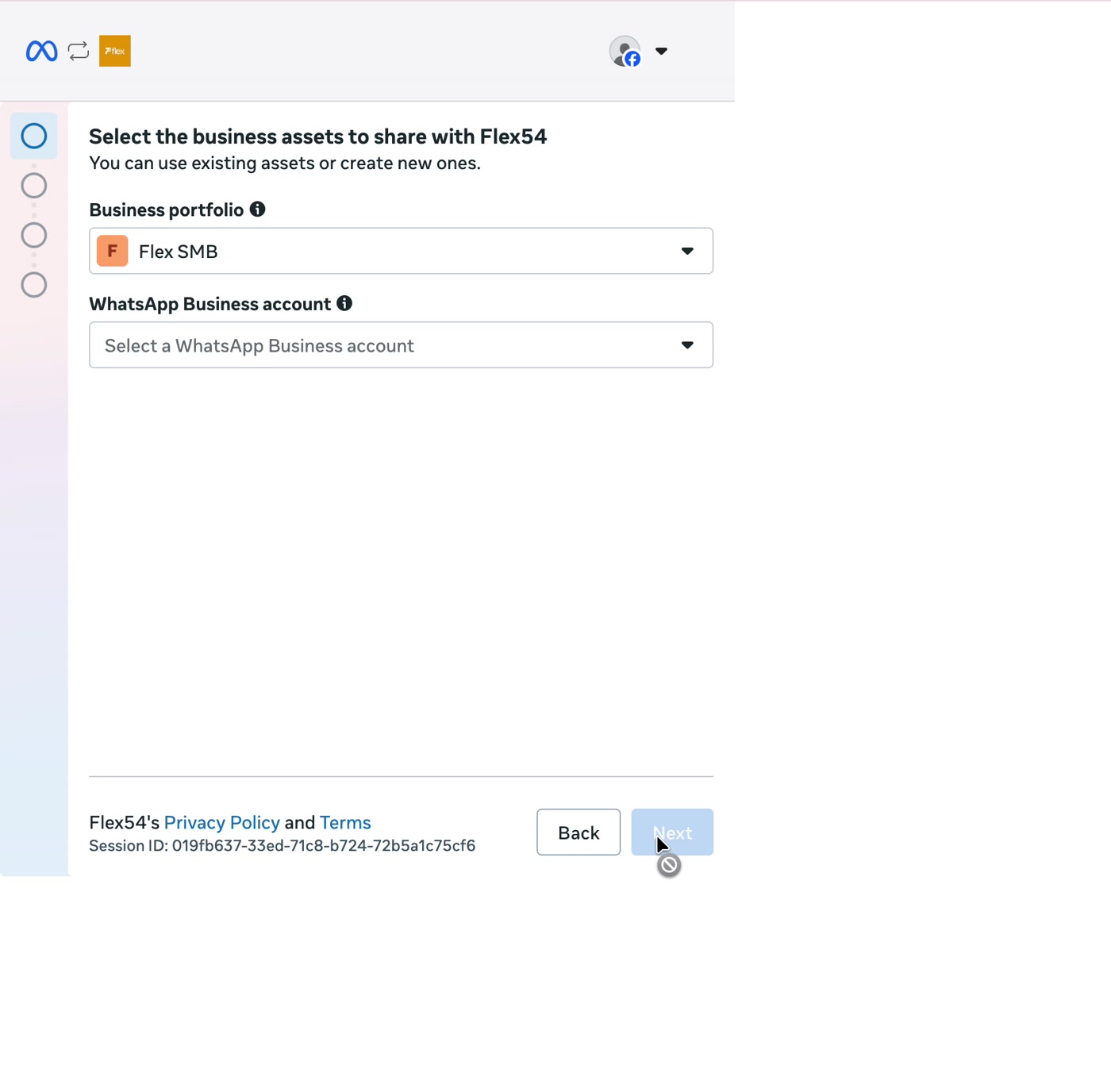
Example screen. Account names may differ in your workspace. - 04
Select the WhatsApp Business Account
Choose the correct WhatsApp Business Account. Check the business name carefully before moving on.
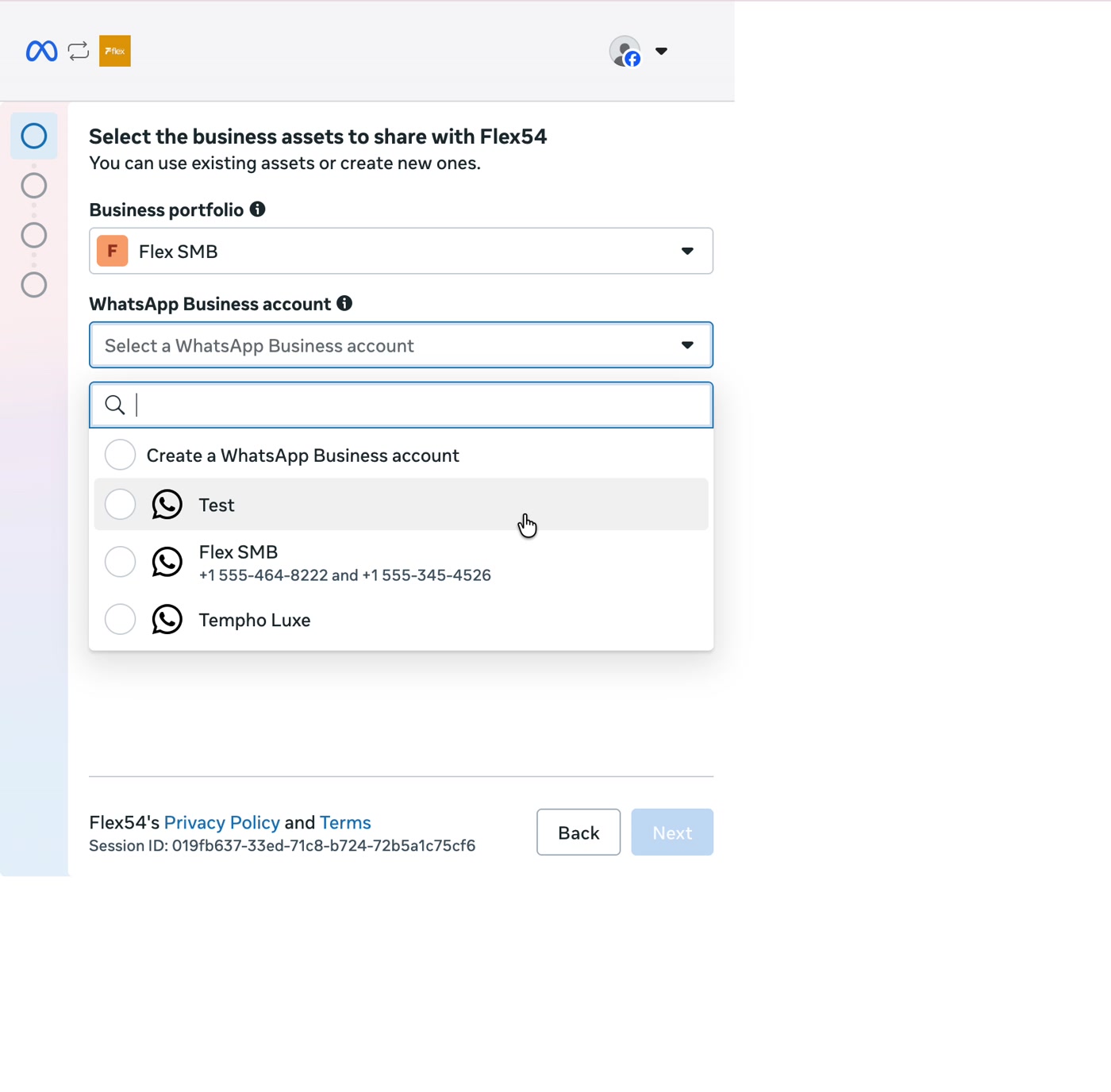
Example screen. Account names may differ in your workspace. - 05
Add or choose a phone number
Select the option to use a new or existing WhatsApp number. Meta may ask you to verify the number.
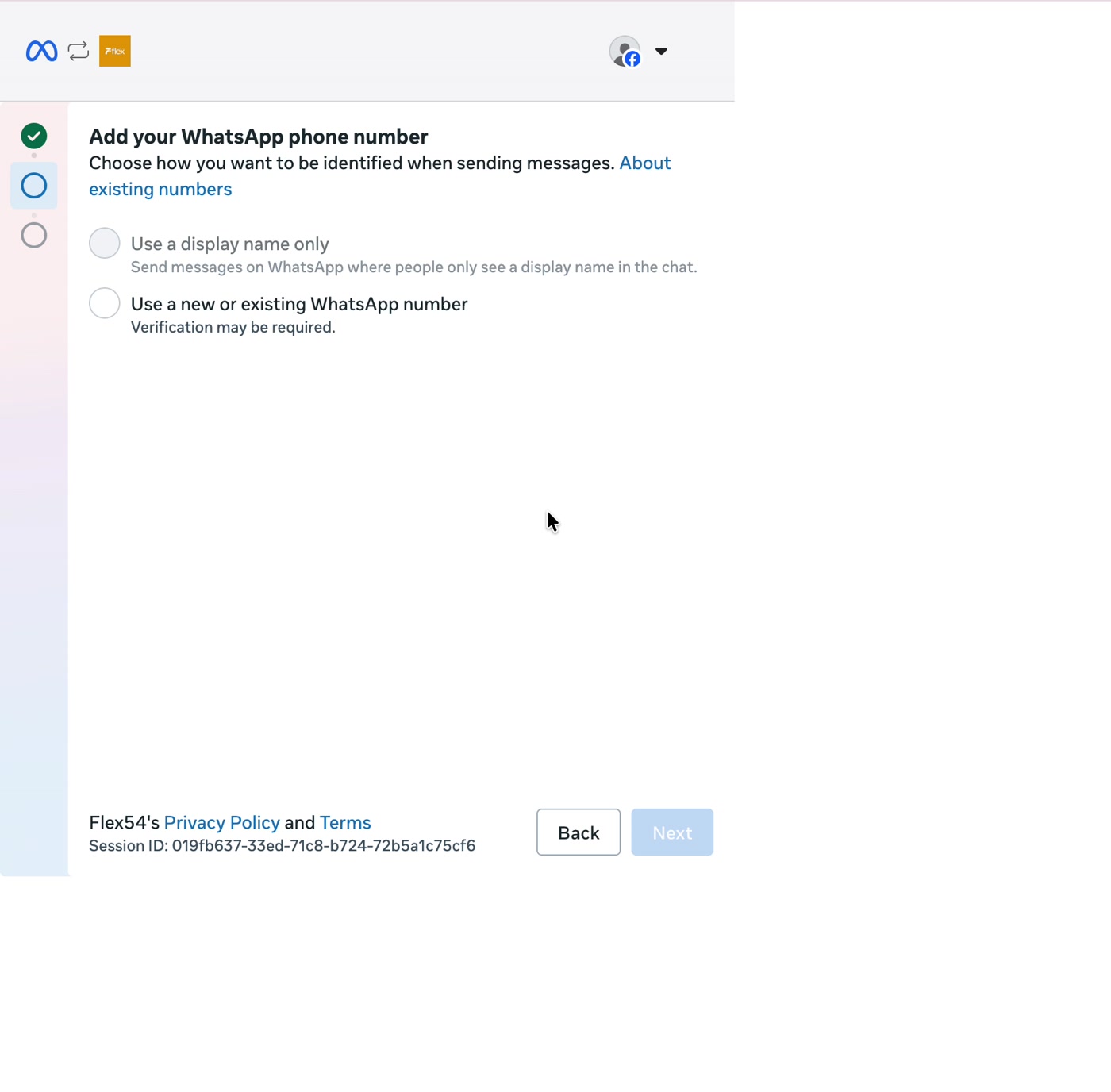
Example screen. Account names may differ in your workspace. - 06
Confirm the number
Select the phone number customers should use, then click Next.
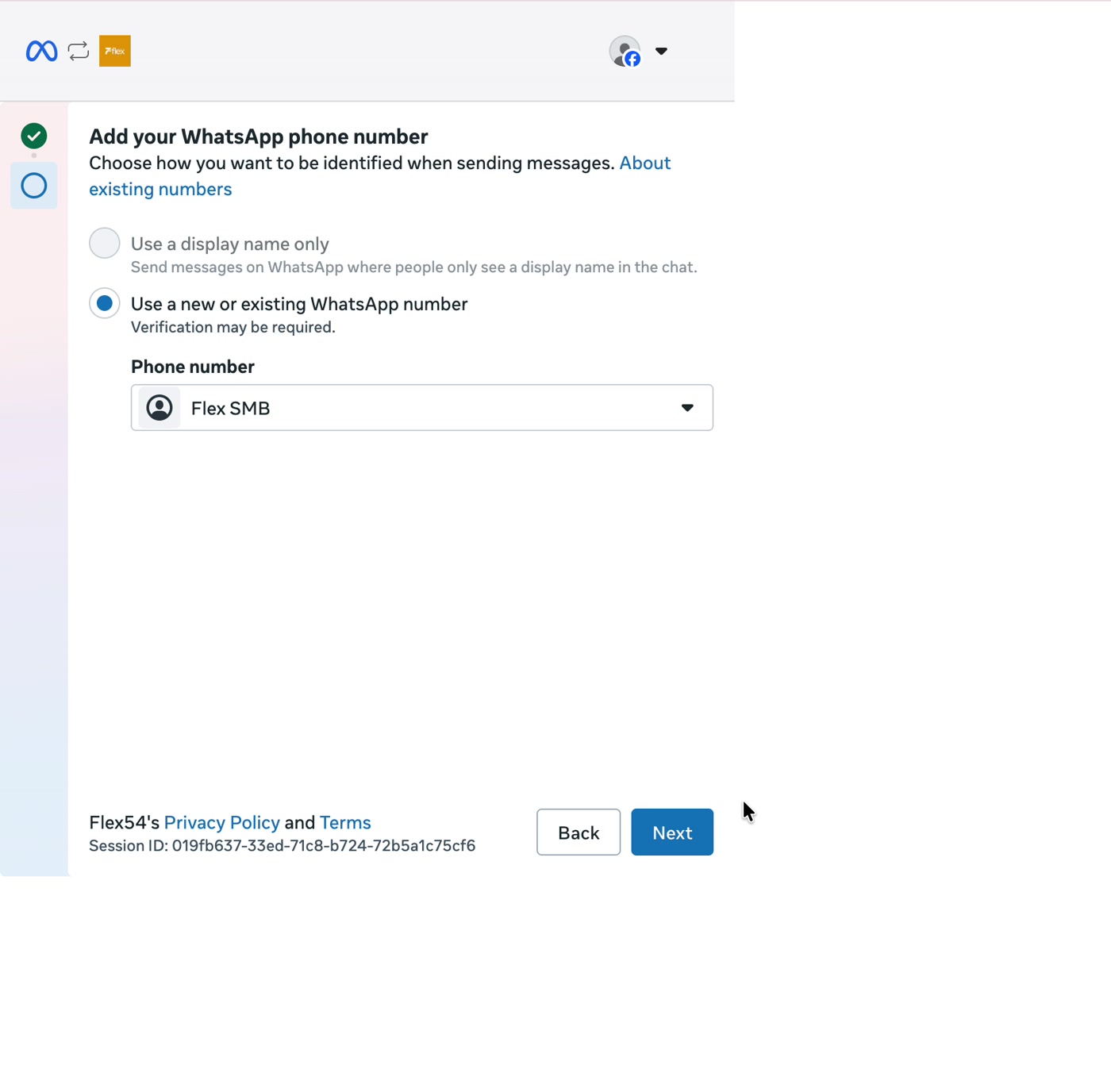
Example screen. Account names may differ in your workspace. - 07
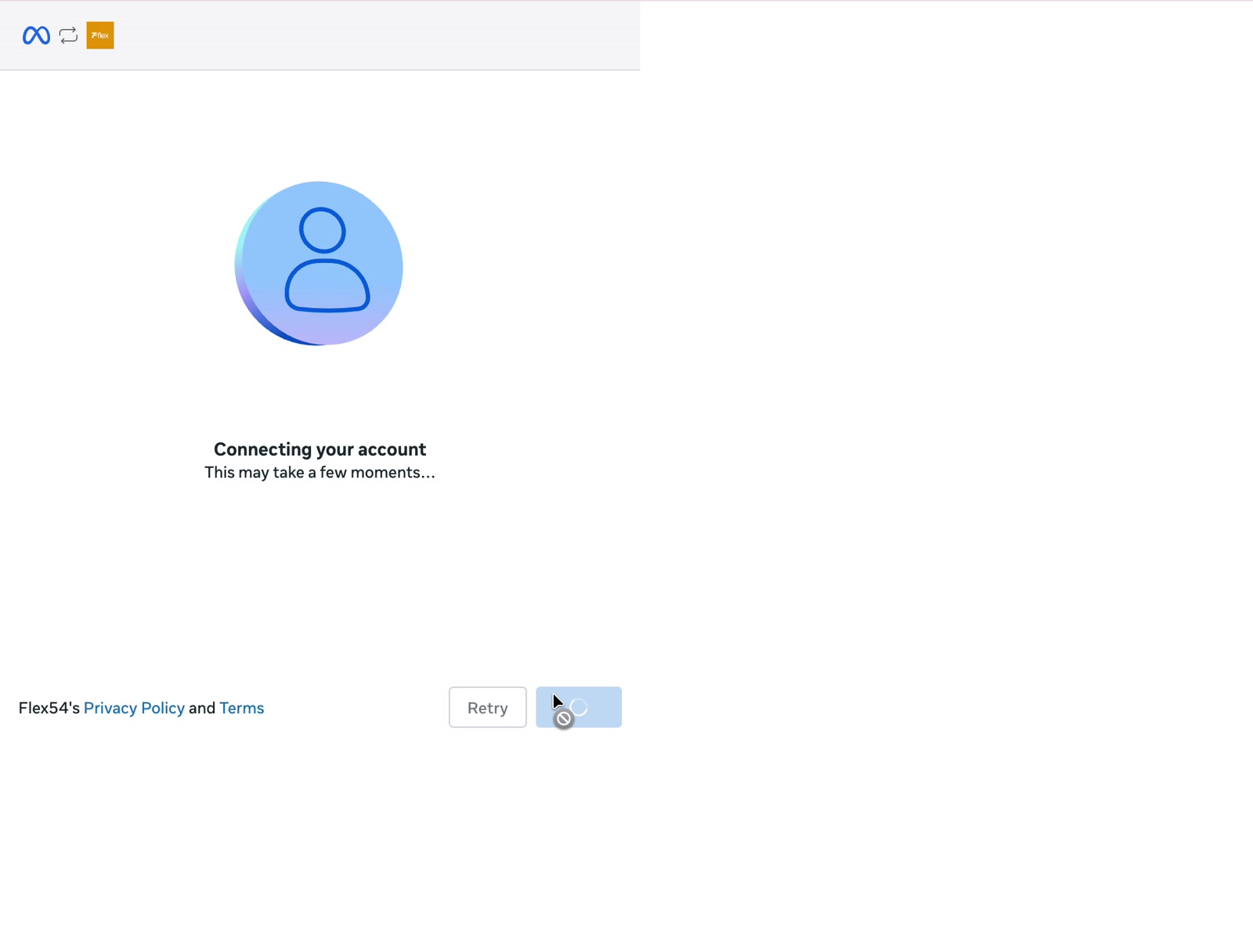
Wait for Meta to finish
Keep the window open while Meta connects the account.
Example screen. Account names may differ in your workspace. - 08
Finish and return to Flex54
When Meta confirms the connection, click Finish and return to Flex54.
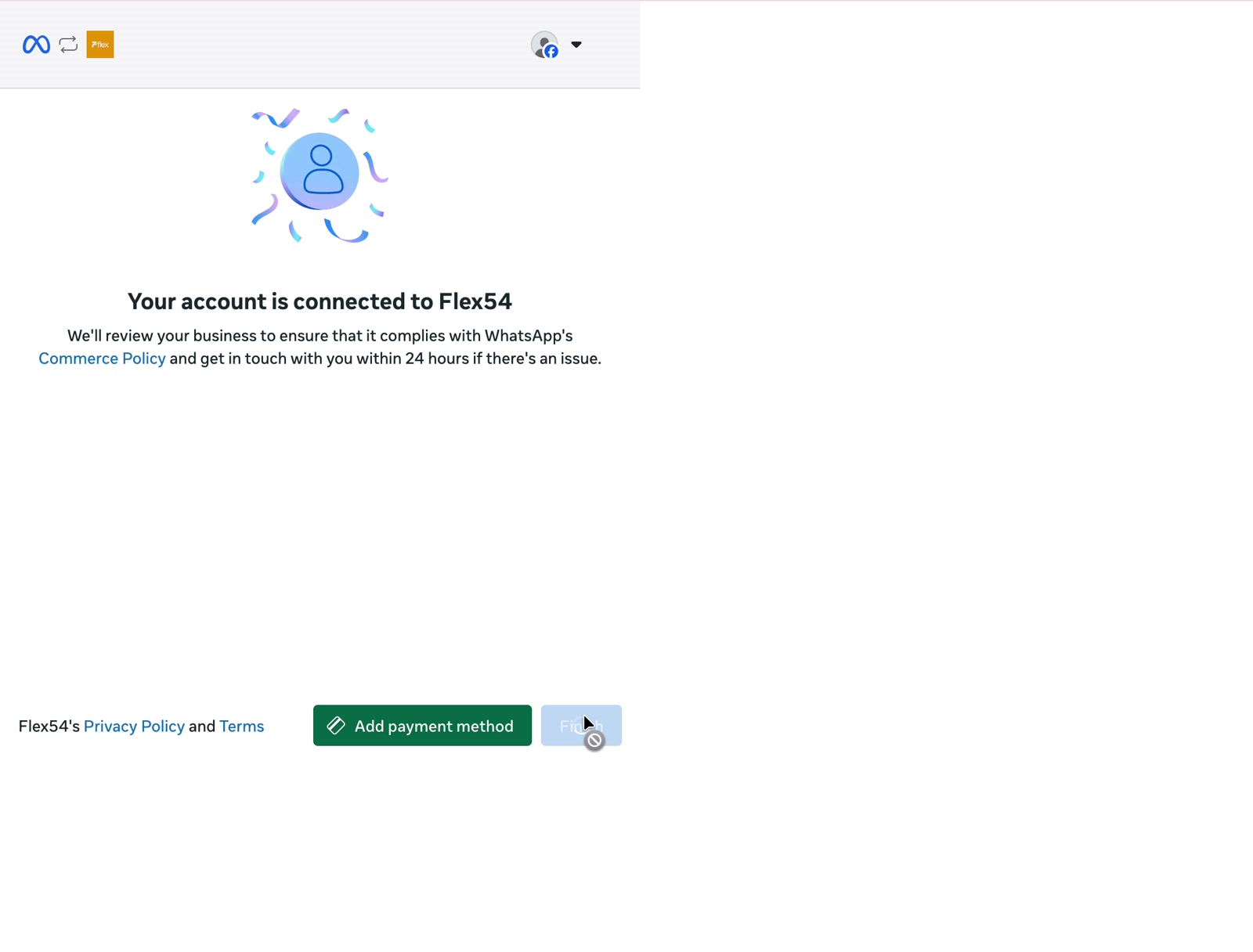
Example screen. Account names may differ in your workspace. - 09
Check the connected status
The WhatsApp card should show as connected. Send a test message and confirm it appears in Conversations.
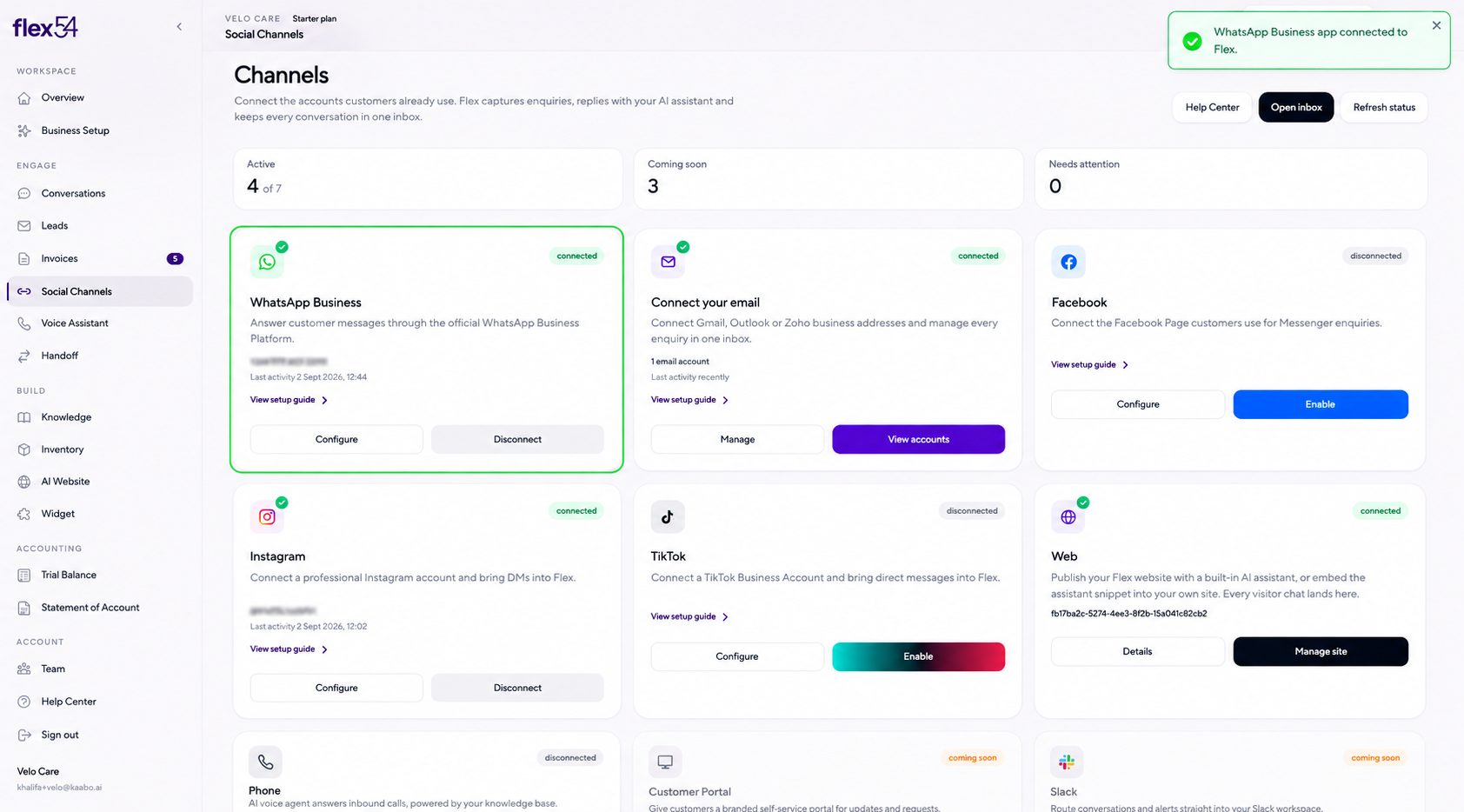
Example screen. Account names may differ in your workspace.
Connection complete
Confirm everything works
- WhatsApp Business shows Connected in Channels.
- A test inbound message appears in Conversations.
- Your team can send a reply from Flex54.
Troubleshooting
If something doesn't work
The number does not appear
Confirm the number belongs to the selected WhatsApp Business Account and that your Meta profile has full control.
The mobile app stopped working
Confirm you selected Existing business app number. A dedicated Platform number is managed through the platform.
Meta says the business is under review
Follow the status in Meta Business Manager and retry after approval.