Social messaging · 3–5 min
Connect TikTok
Authorize an eligible TikTok Business account so your team can manage TikTok conversations in Flex54.
Before you start
Have these ready
- Login access to the TikTok Business account you want to connect.
- TikTok Business Messaging API access and an account eligible for Advanced Access.
- Pop-ups enabled for this setup session.
Step-by-step
Follow these steps
- 01
Open TikTok in Channels
In Flex54, select Channels and find TikTok. Click Configure or Enable.
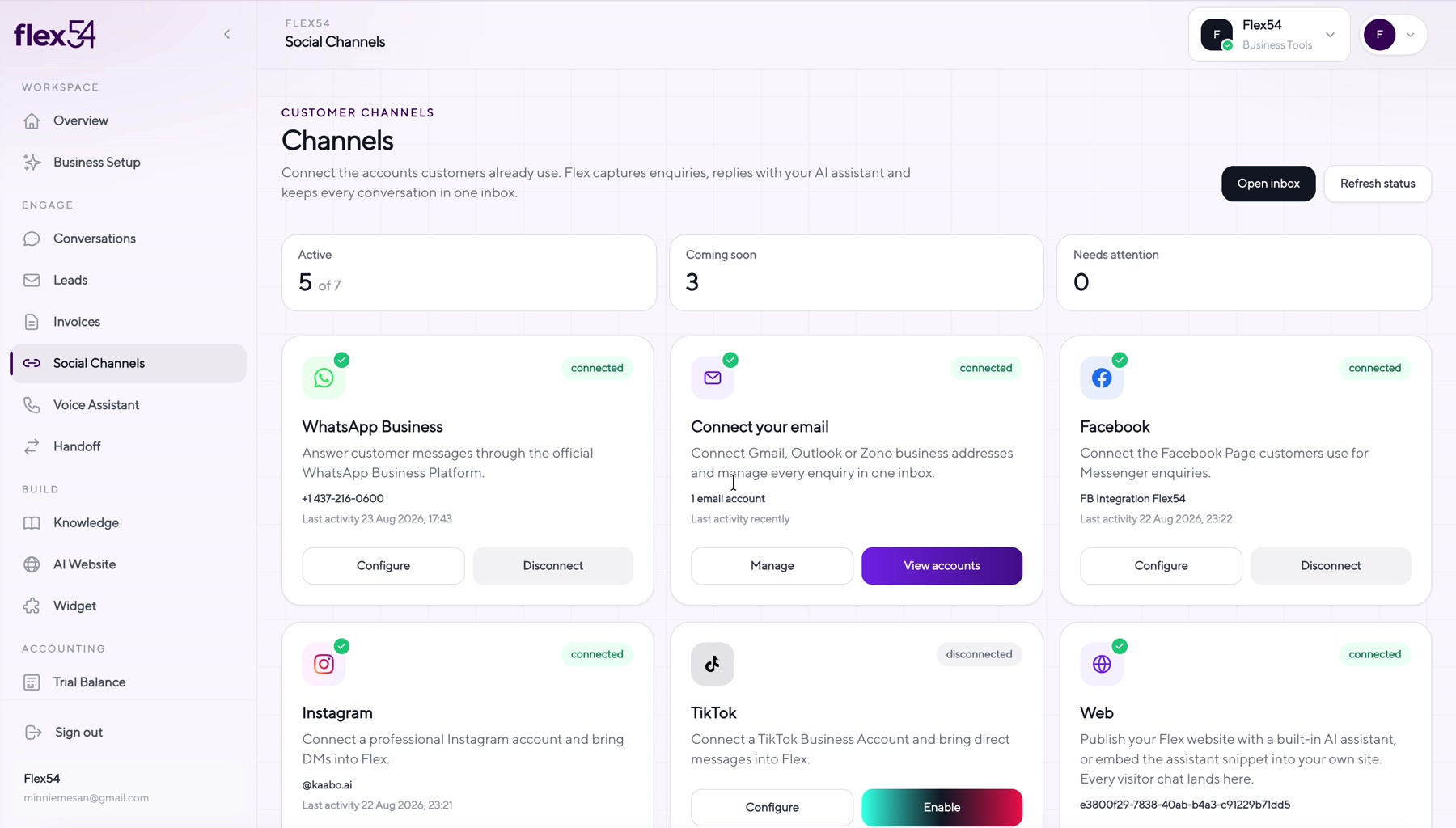
Example screen. Account names may differ in your workspace. - 02
Authorize the correct TikTok account
TikTok opens an authorization window. Confirm the account shown is correct. Use Switch account if needed.
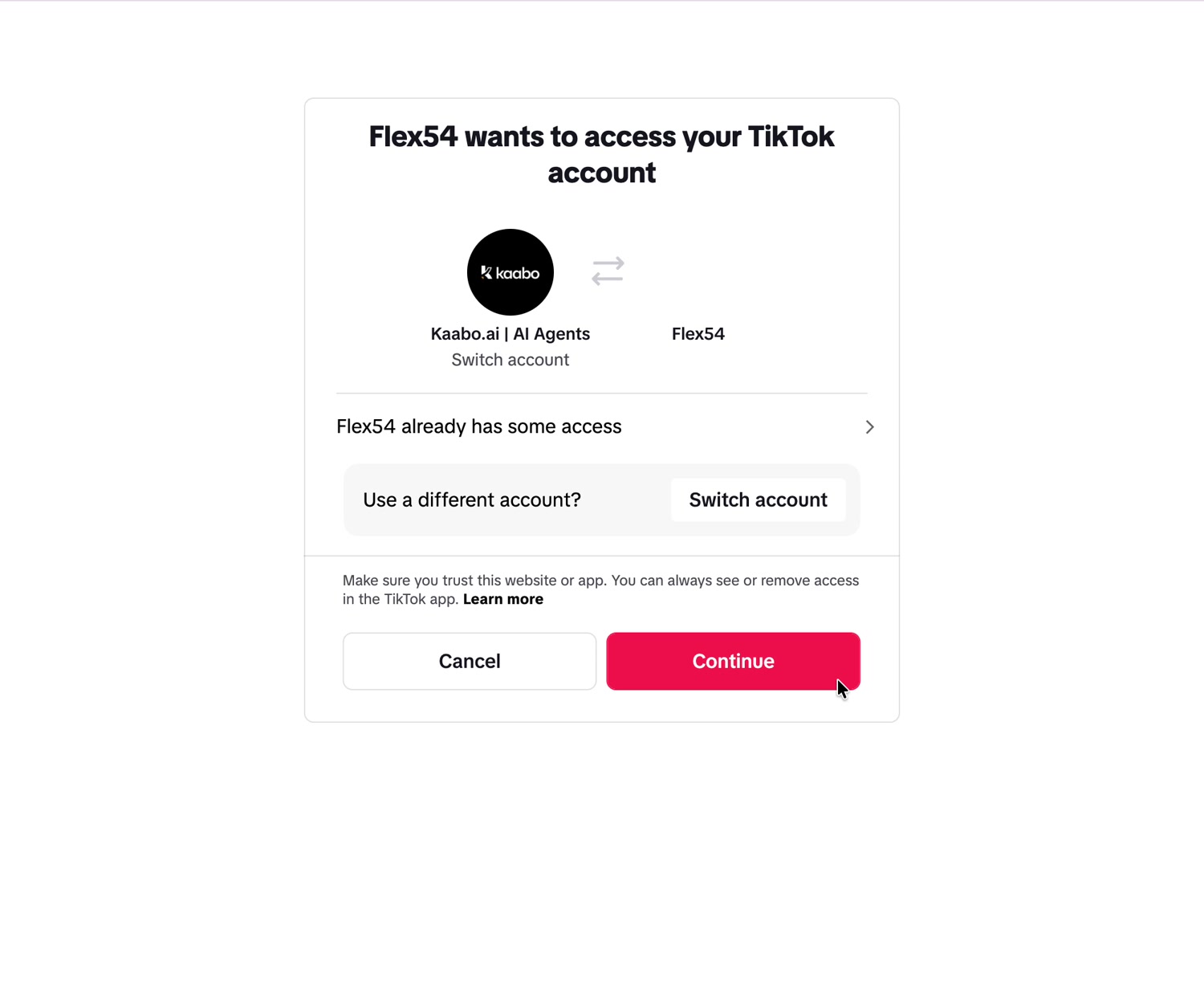
Example screen. Account names may differ in your workspace. - 03
Confirm the connection
After authorization, TikTok returns you to Flex54. The TikTok card should show as connected.
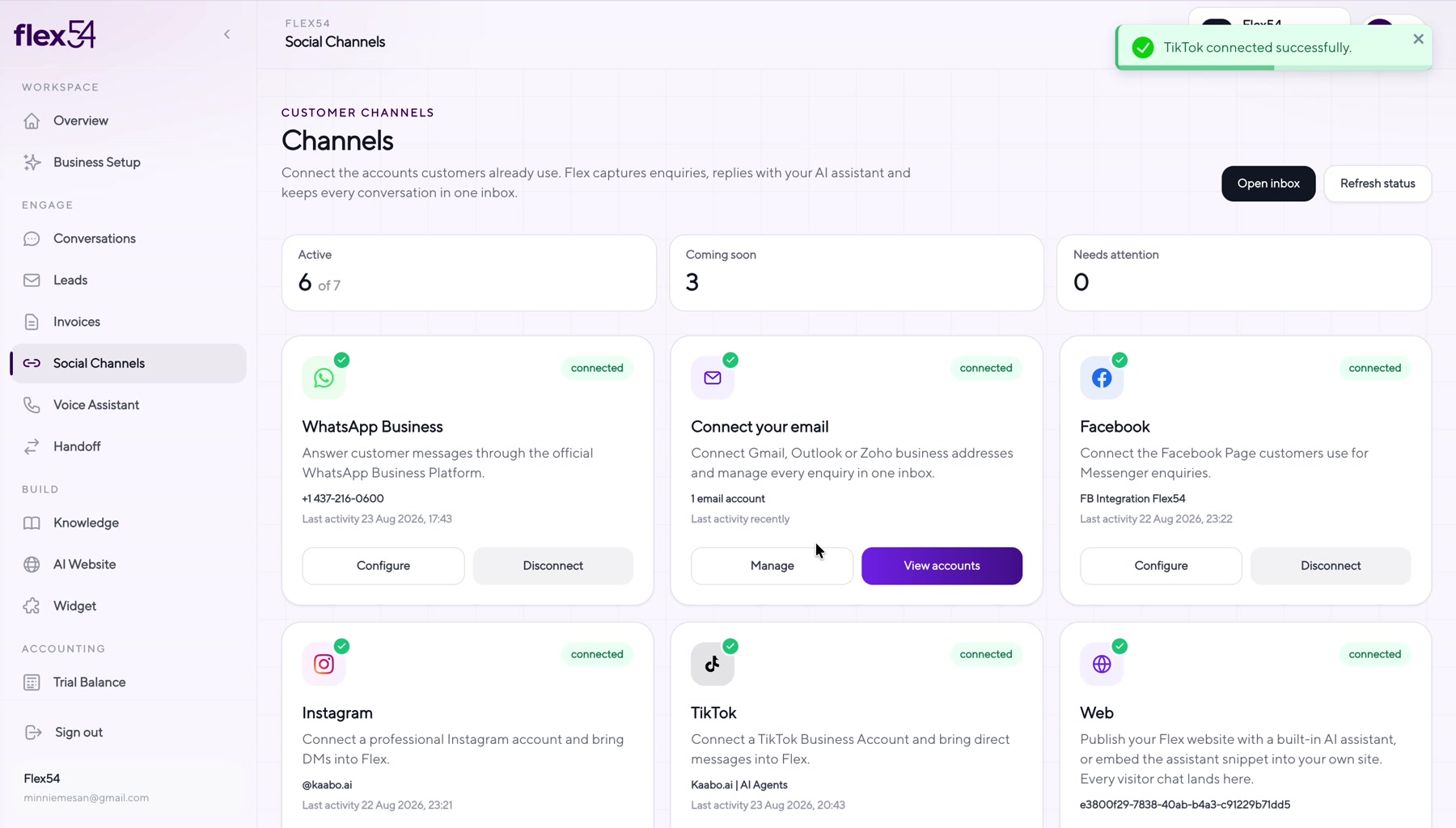
Example screen. Account names may differ in your workspace. - 04
Test a TikTok conversation
Open Conversations, send a DM from another account, and reply from Flex54.
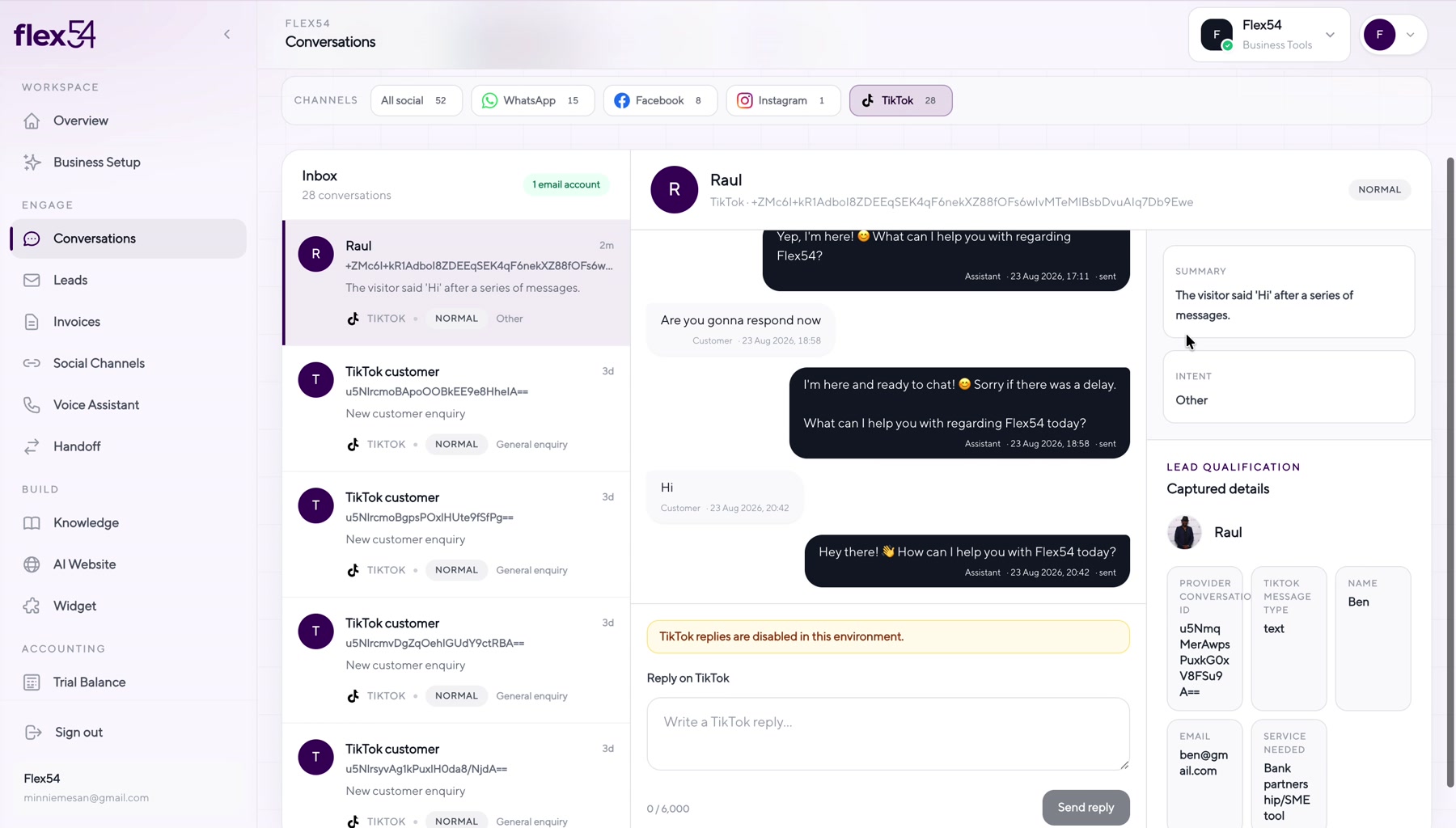
Example screen. Account names may differ in your workspace.
Connection complete
Confirm everything works
- TikTok shows Connected in Channels.
- A test direct message appears in Conversations.
- A reply sent from Flex54 reaches TikTok.
Troubleshooting
If something doesn't work
User is not eligible for Advanced Access
The connected TikTok account needs Advanced Access or an eligible Verified Business Account. Enable the entitlement, then reconnect.
The wrong TikTok account opens
Use Switch account in the TikTok window, or sign out of TikTok in the browser before reconnecting.
Messages do not arrive
Confirm direct messages are enabled for the account and the same eligible account is connected in Flex54.